
Variabl Client Management: Clients, Invoices & Payments in One Place
Who owes you what, what they’ve already paid, and their billing details filled in from a single paste.
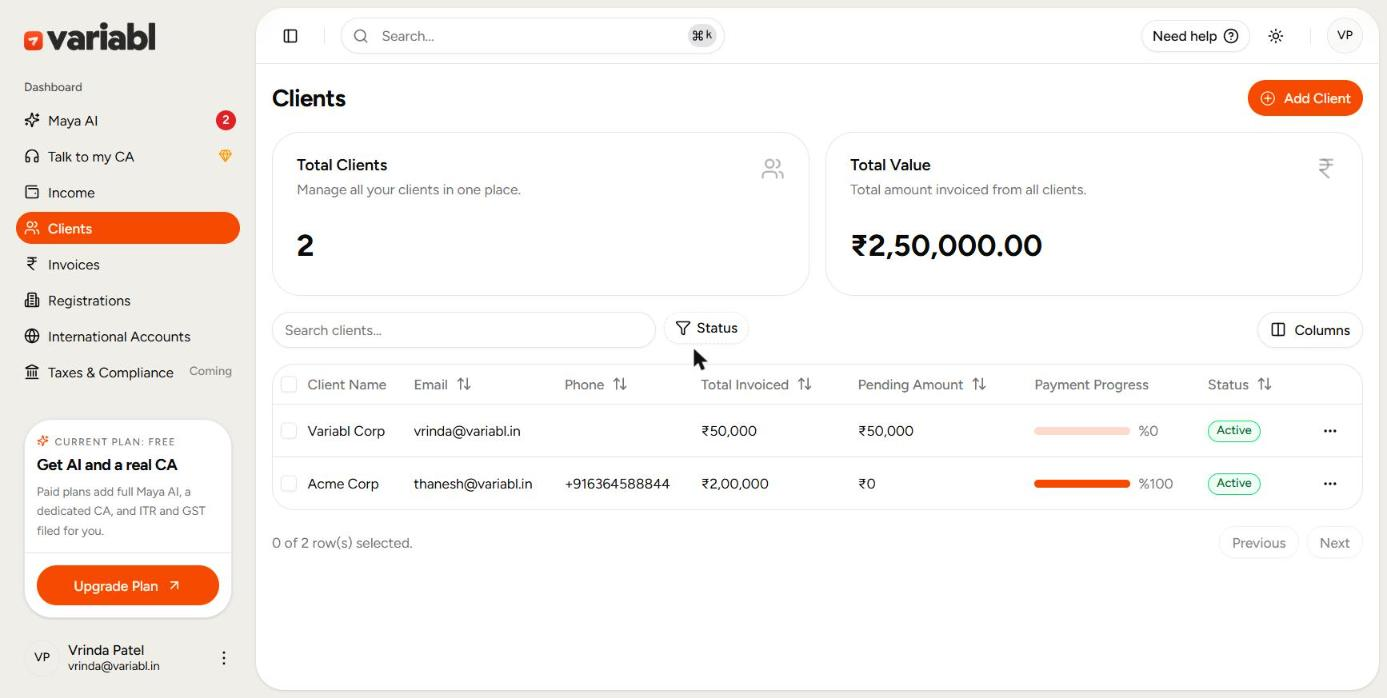
The Variabl clients dashboard holds every client you bill, with their legal billing name, GST details, address, currency and default payment terms saved once. Alongside each name you get what you’ve invoiced them, what’s still pending, and a progress bar showing how much of it they’ve actually paid. When you raise the next invoice, you pick the client and the whole “Billed To” block fills itself in.
Why does keeping client details in your notes app fall apart?
You’ve billed the same client eleven times. Every one of those invoices needed their legal billing name, their GSTIN, their registered address, their state code. So every time, you opened the last invoice you sent them, and copied it across.
That works right up until it doesn’t. A client shifts their registered office and you keep billing the old address. You typo a GSTIN once and it propagates through every invoice after it. You genuinely cannot remember whether the guy who owes you ₹50,000 is the one who always pays in a week or the one who took two months last time.
None of this is a discipline problem. It’s that contact details, billing details and payment history are three different things living in three different places : your phone, your last invoice, and your head and nothing keeps them in sync.
What does the clients dashboard show you?
Open Clients and two numbers are waiting before you do anything:
- Total Clients - everyone you currently bill, in one roster.
- Total Value - the total amount you’ve invoiced across all of them.
Below that, every client sits in one table:
- Client Name, Email, Phone - the contact layer.
- Total Invoiced - everything you’ve ever billed that client.
- Pending Amount - what’s still outstanding from them, right next to it.
- Payment Progress - a bar showing what percentage of their invoices they’ve actually paid.
- Status - Active or Inactive.
That Payment Progress bar is the column worth looking at first. A client sitting at 100% is a client you can quote confidently. A client at 0% with ₹50,000 pending is a conversation you should have been having last week. You get both without opening a single invoice.
Every money column is sortable, so one click puts your biggest outstanding balance at the top.
How do you add a client without typing anything?
This is the part that saves the most time.
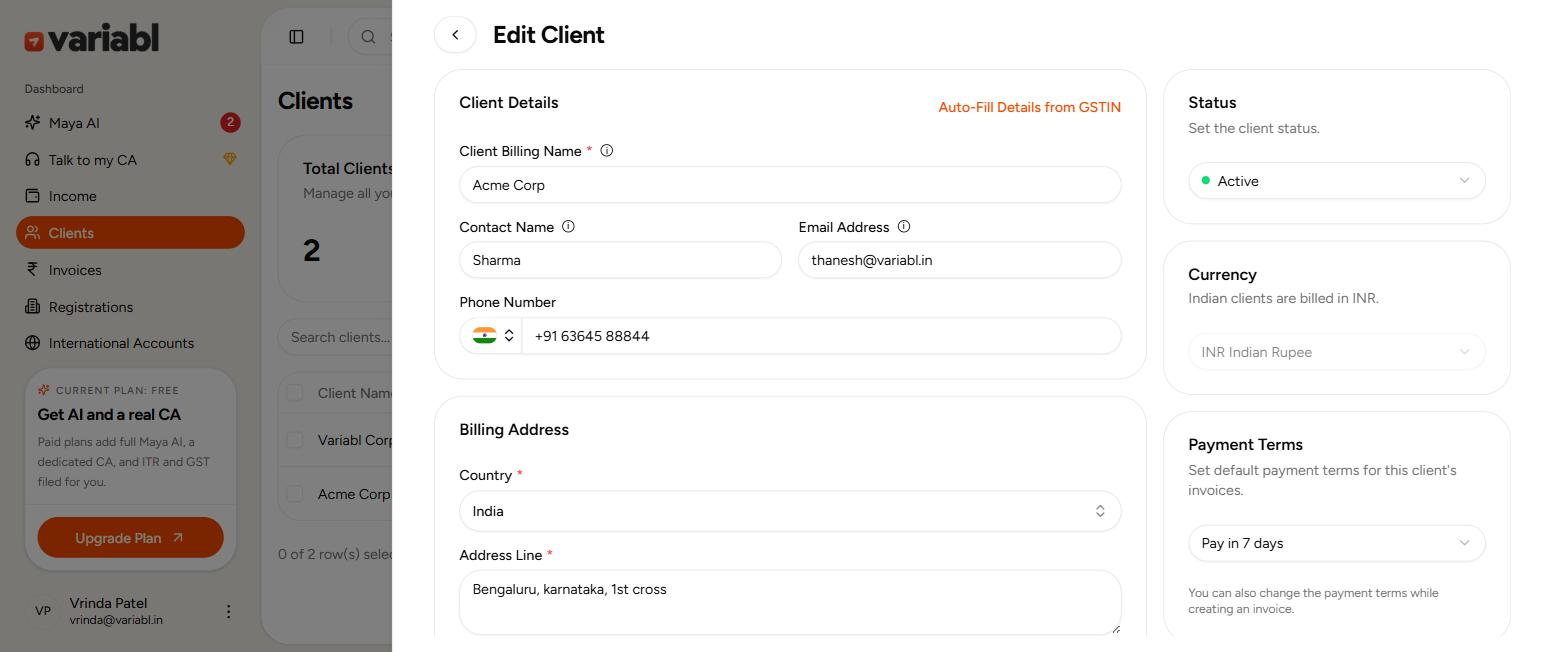
Hit Add Client and, instead of filling the form, click Auto-Fill Details from GSTIN. Paste the client’s GSTIN - the 15-character one, 27AAAAA0000A1Z5 - and hit Auto-Fill. Variabl pulls their registered legal name and billing address straight from the GST registry and drops them into the form.
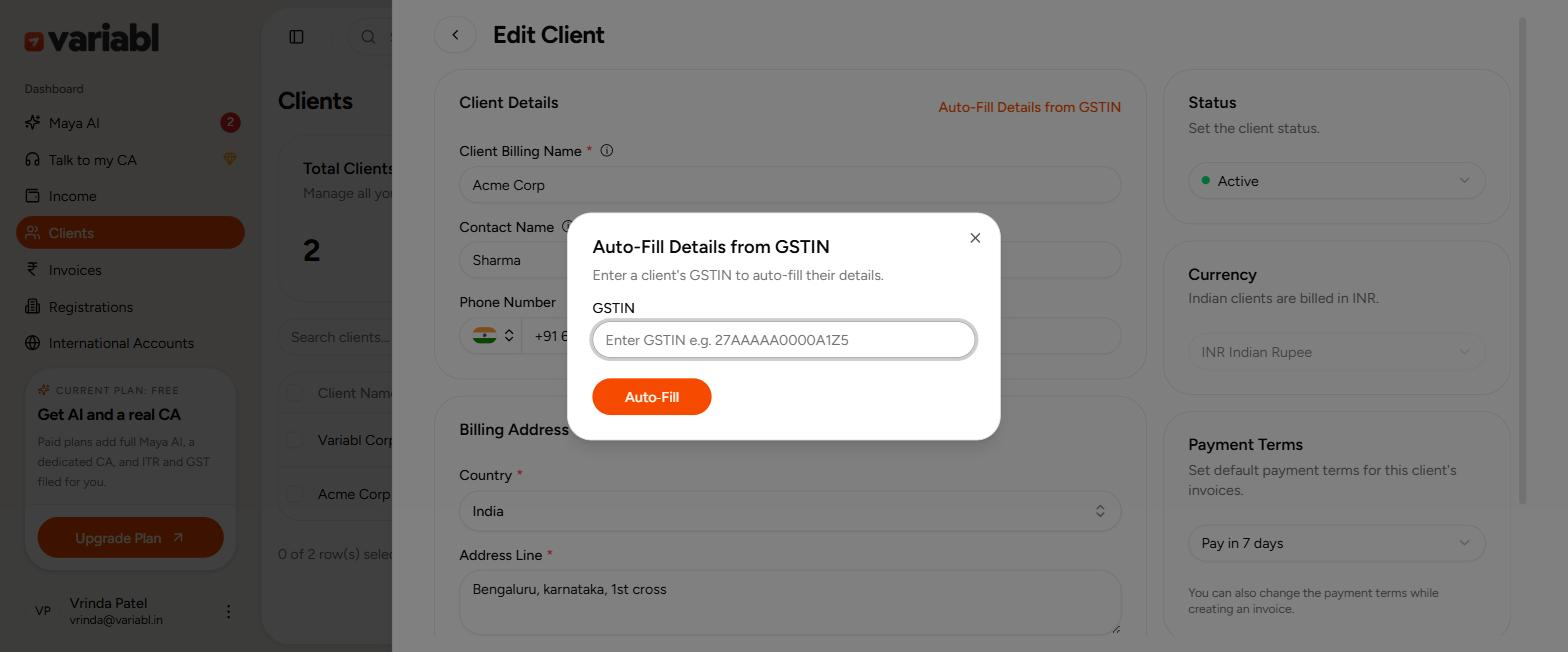
That matters for more than speed. The name and address on a GST invoice have to match the client’s registration exactly. Typing it by hand is how mismatches happen. Pulling it from the source is how they don’t.
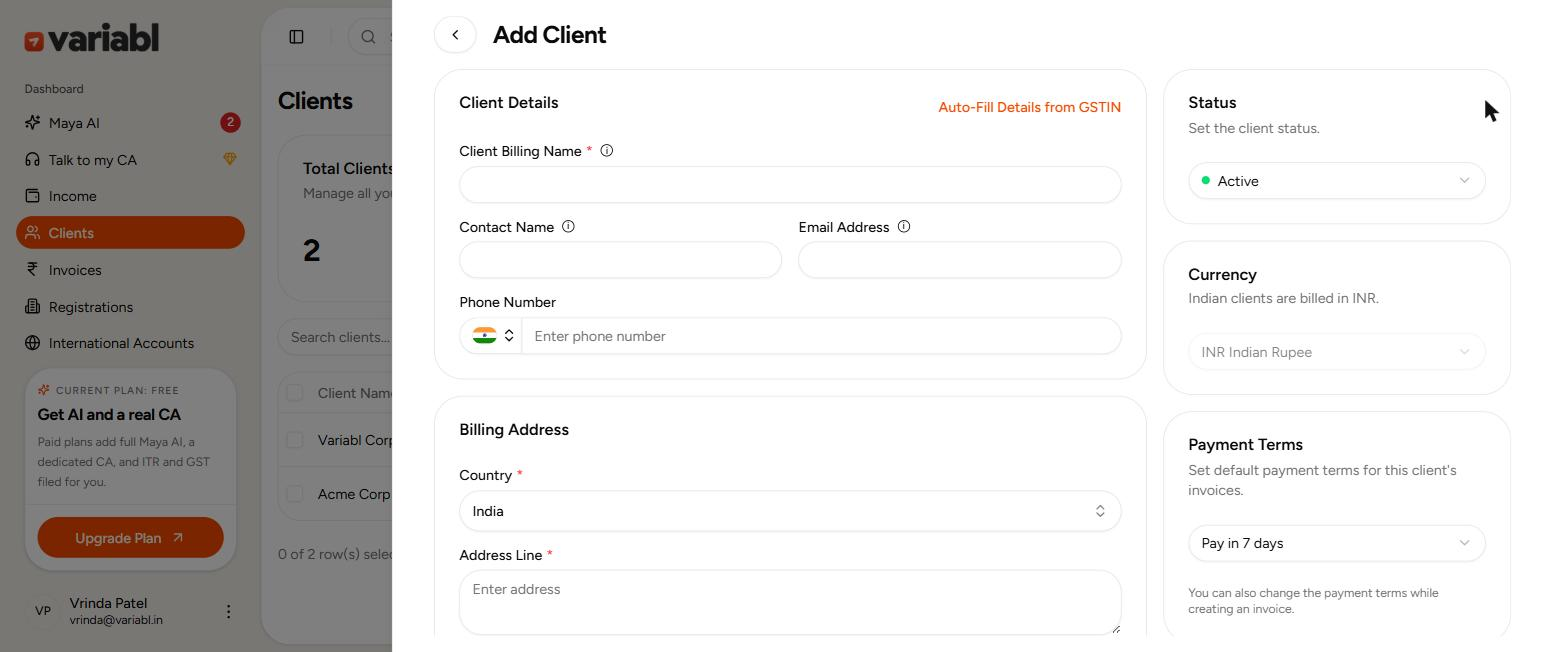
If the client isn’t GST-registered, the form is still there to fill in normally: billing name, contact person, email, and a phone number with an international country-code picker.
What else goes on a client record?
The right-hand rail of the client panel is where the record stops being an address book entry and starts doing work:
- Status - Active or Inactive, so a client you’ve stopped working with disappears from your working list without you deleting their invoice history.
- Currency - set from the client’s billing country. Indian clients are billed in INR.
- Payment Terms - the default due date for everything you bill this client: Due on Receipt, 7 days, 15 days, 30 days, or a custom number of your own.
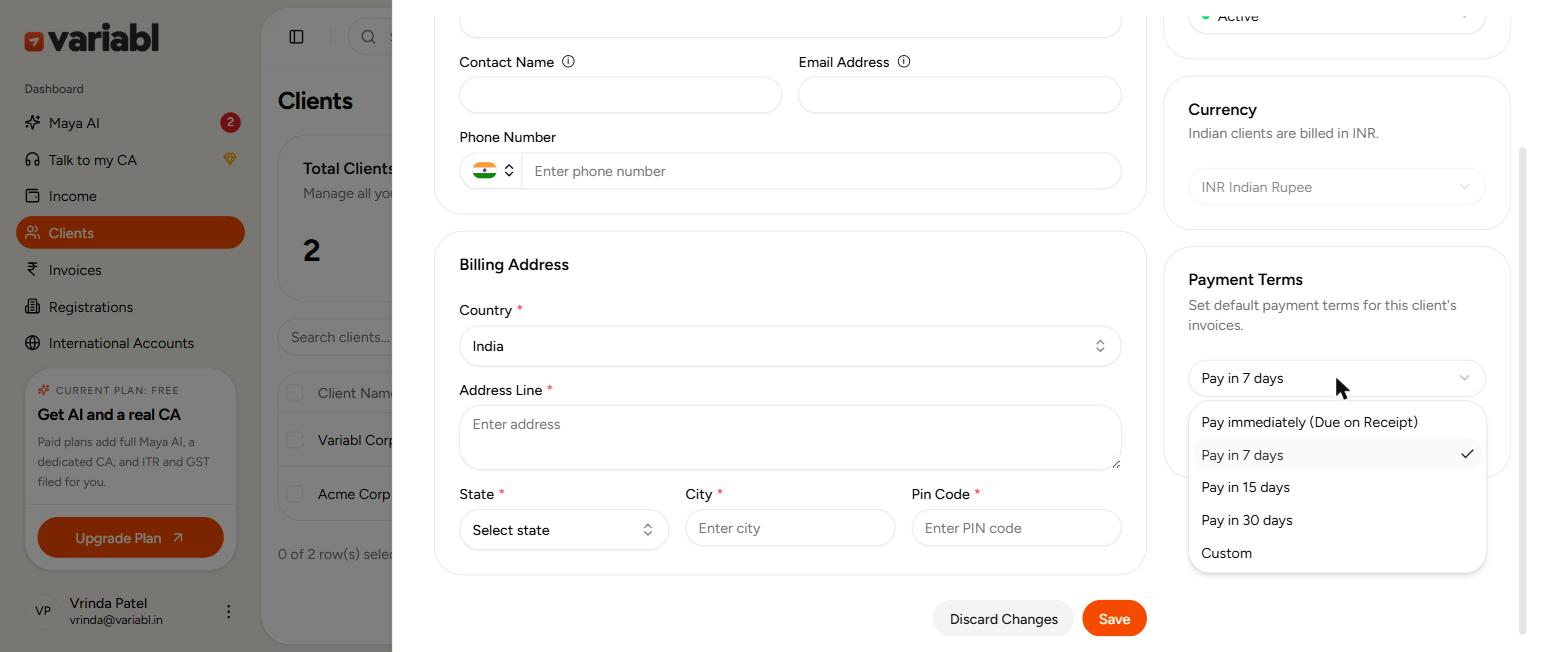
Payment terms saved per client is a small setting that quietly removes a recurring decision. The agency that always gets 30 days gets 30 days. The new client on Due on Receipt gets Due on Receipt. You stop doing date arithmetic on every invoice.
The billing address block below captures Country, Address Line, State, City and Pin Code - the fields a compliant GST invoice needs, held in one place instead of retyped into each one.
How do you find one client fast?
Three tools, all on the list screen:
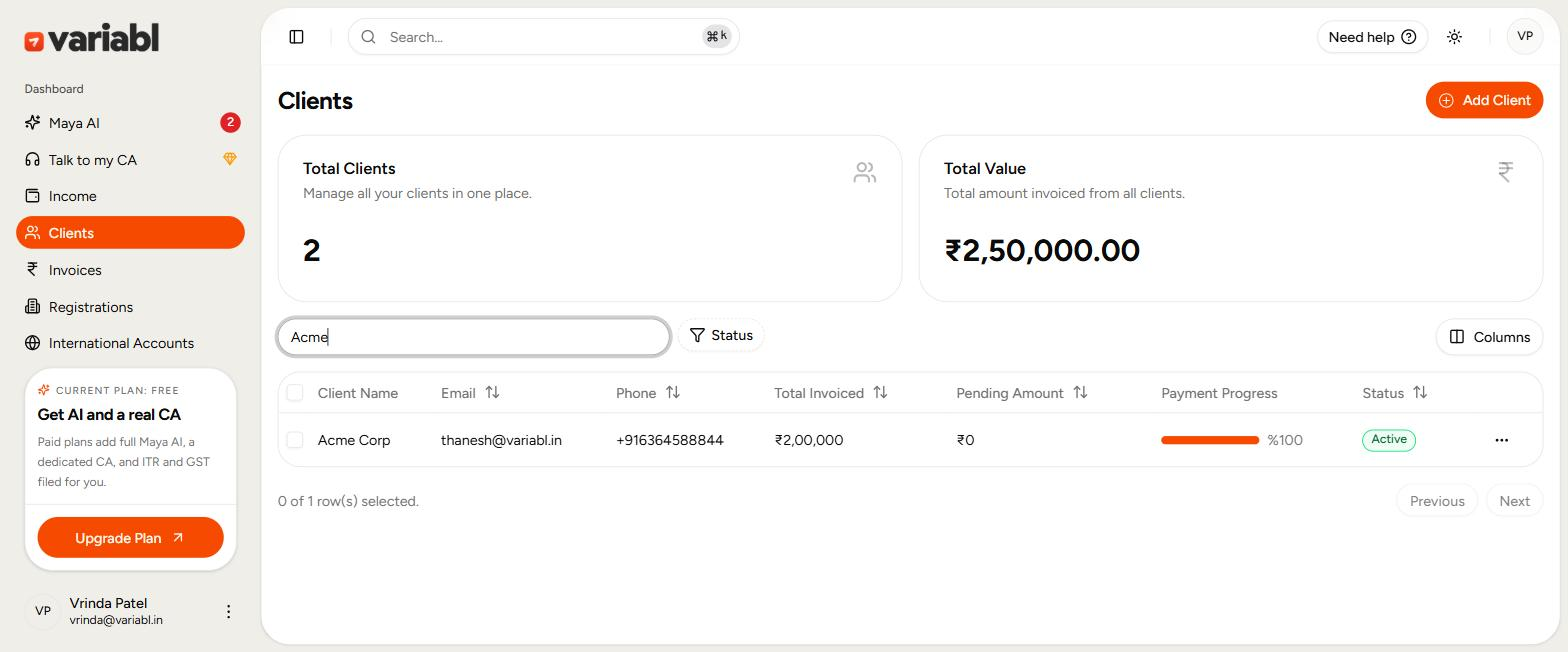
- Search : type any part of a name and the table filters as you type. No submit, no reload.
- Status filter : Active or Inactive, with a live count next to each.
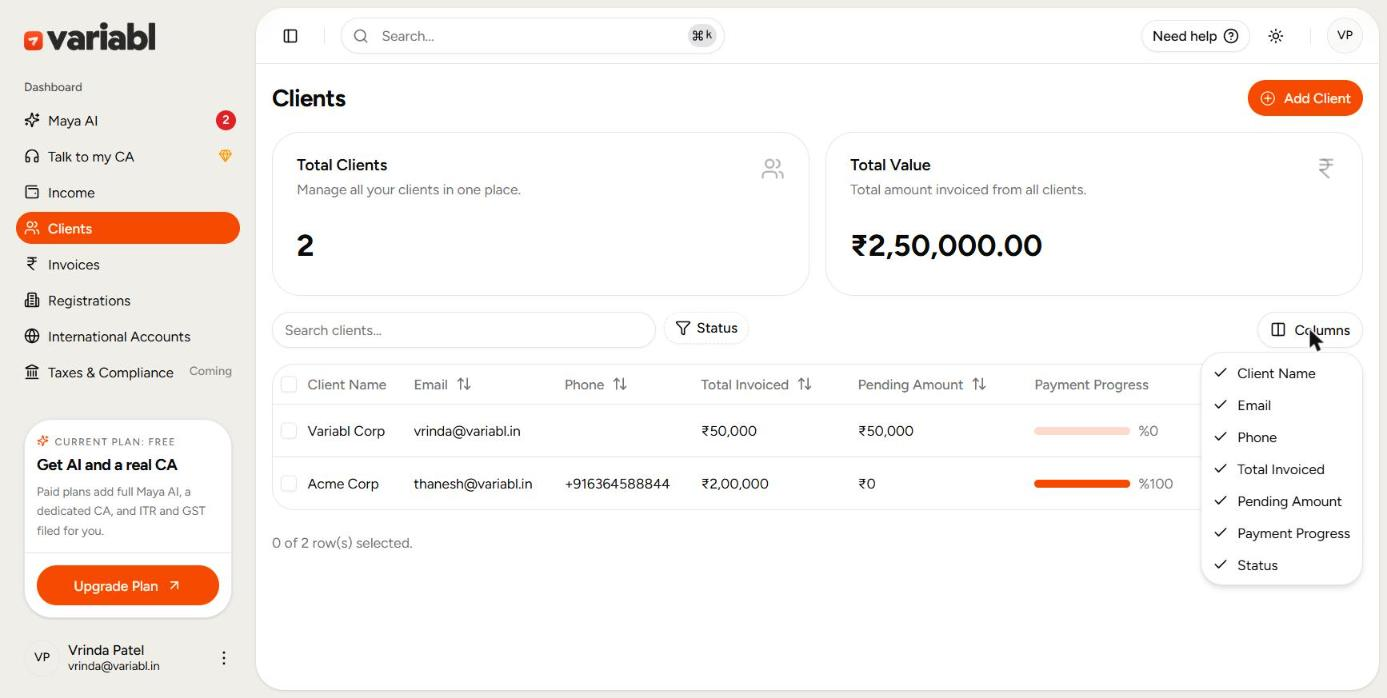
- Columns : show or hide any column. If you don’t collect phone numbers, turn the column off. If you only care about receivables this week, strip it down to name, pending and progress.
What happens when you create an invoice?
This is the payoff for keeping the record.
On New Invoice, the Client field is a searchable dropdown of everyone you’ve saved. Pick one and their billing name, address, GST details and currency populate the invoice preview immediately. The due date is calculated from the payment terms you set on their record. Nothing gets retyped, so nothing gets mistyped.
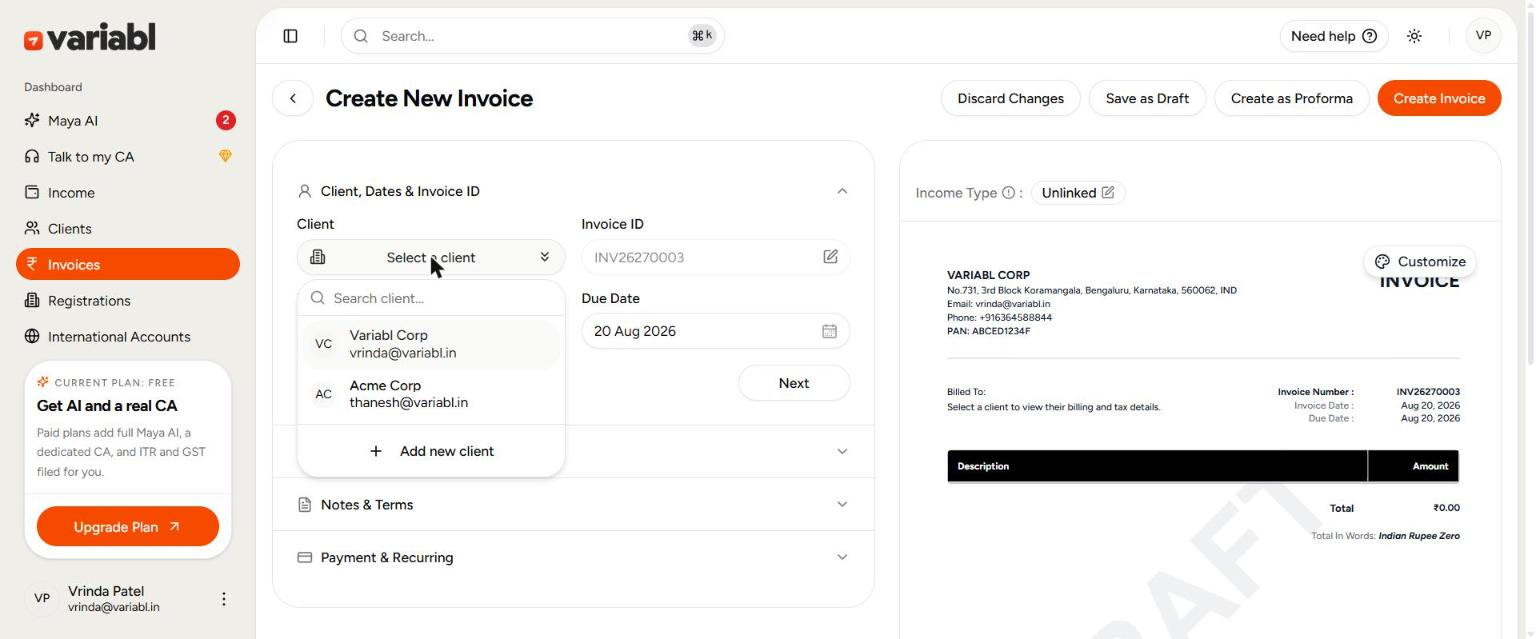
And if you’re invoicing someone new, you don’t have to leave the invoice to go create them first : there’s an Add new client option sitting right inside the same dropdown.
What about clients you no longer work with?
Every row has a three-dot menu with Edit and Delete, and you can select multiple rows to delete in bulk.
But for a client who’s simply gone quiet, don’t delete - set them to Inactive. They drop out of your active list and your default view, while every invoice you ever raised for them stays intact in your records. Which is what you want in March, when you’re pulling the year’s numbers together.
Client list vs. copying your last invoice
| The job | Your notes app / last invoice | Variabl clients dashboard |
|---|---|---|
| Storing billing details | Copy-paste from an old invoice | Saved once, reused on every invoice |
| Getting GSTIN, legal name and address right | Ask the client, retype, hope | Paste the GSTIN, Variabl fills the rest |
| Knowing who still owes you | Add up invoices by hand | Pending Amount per client, live |
| Seeing who actually pays on time | Memory | Payment Progress bar, 0–100% |
| Setting a due date | Recalculate on every invoice | Default payment terms saved per client |
| A client you’ve stopped billing | Delete and lose the history | Mark Inactive, keep every invoice |
| Finding one client | Scroll, or Ctrl+F an old folder | Search and filter instantly |
A client record isn’t contact storage. It’s the reason your next invoice to that client takes thirty seconds instead of ten minutes, and the reason the details on it are right.
Frequently Asked Questions - FAQs
Can I customize which client details I see in the list?
Yes. The Columns control lets you show or hide any column : email, phone, total invoiced, pending amount, payment progress or status, and every column can be sorted.
Can I see how much a single client still owes me?
Yes. The clients list shows Total Invoiced and Pending Amount for every client, plus a payment progress bar showing what percentage of their invoices has been paid.
Can I set different payment terms for different clients?
Yes. Each client record carries its own default payment terms - Due on Receipt, 7, 15 or 30 days, or a custom period, and every invoice you raise for them inherits it. You can still override the terms on any individual invoice.
What currency are my clients billed in?
Currency is set from the client’s billing country. Indian clients are billed in INR.
Can I import a client’s details from their GSTIN?
Yes. On the Add or Edit Client screen, choose Auto-Fill Details from GSTIN, paste the client’s GSTIN, and Variabl pulls their registered legal name and billing address in for you.
What happens to a client I stop working with?
Set them to Inactive rather than deleting them. They come out of your active client list while all their past invoices stay in your records.